
If you want a different division of the curriculum list than the options you find in the standard templates, you can freely remove, add, and move sections.
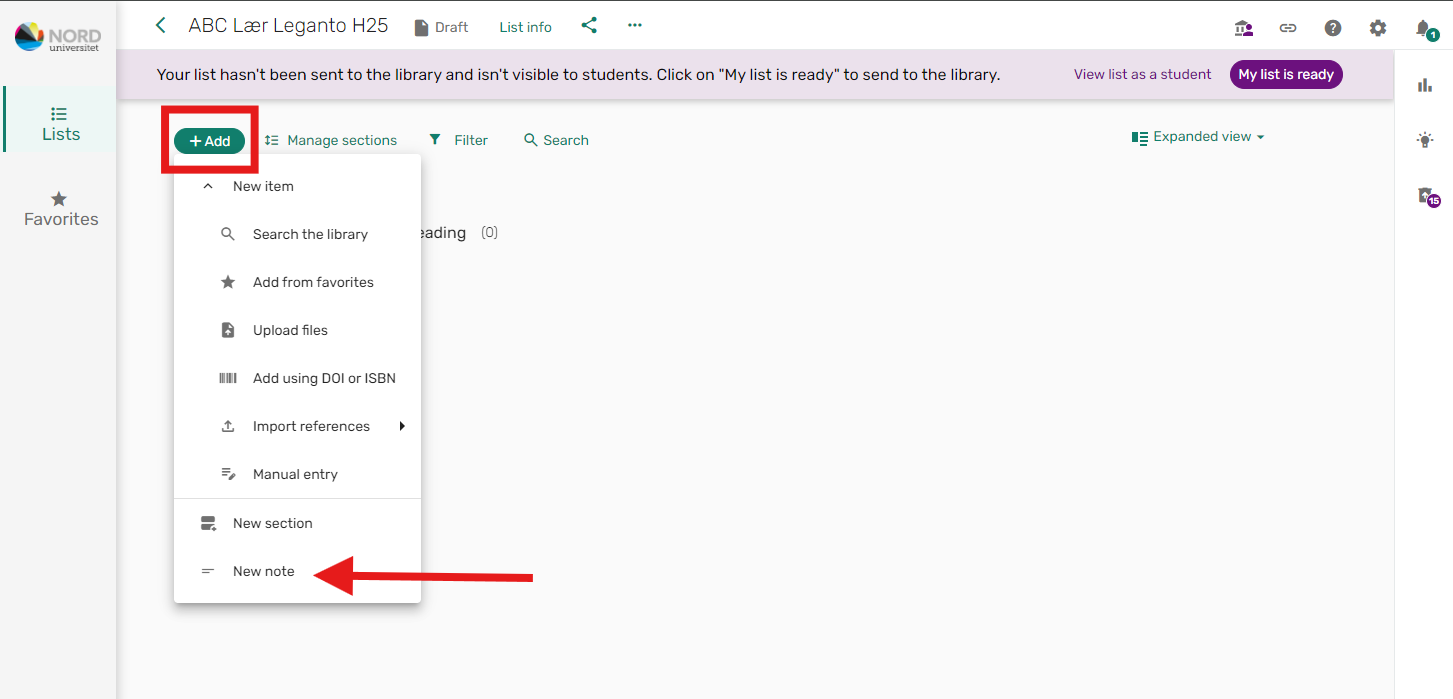
To add a section:
Click the "+Add" button, and select "New Section".
Enter the name of the section in the title field, and click "Add".
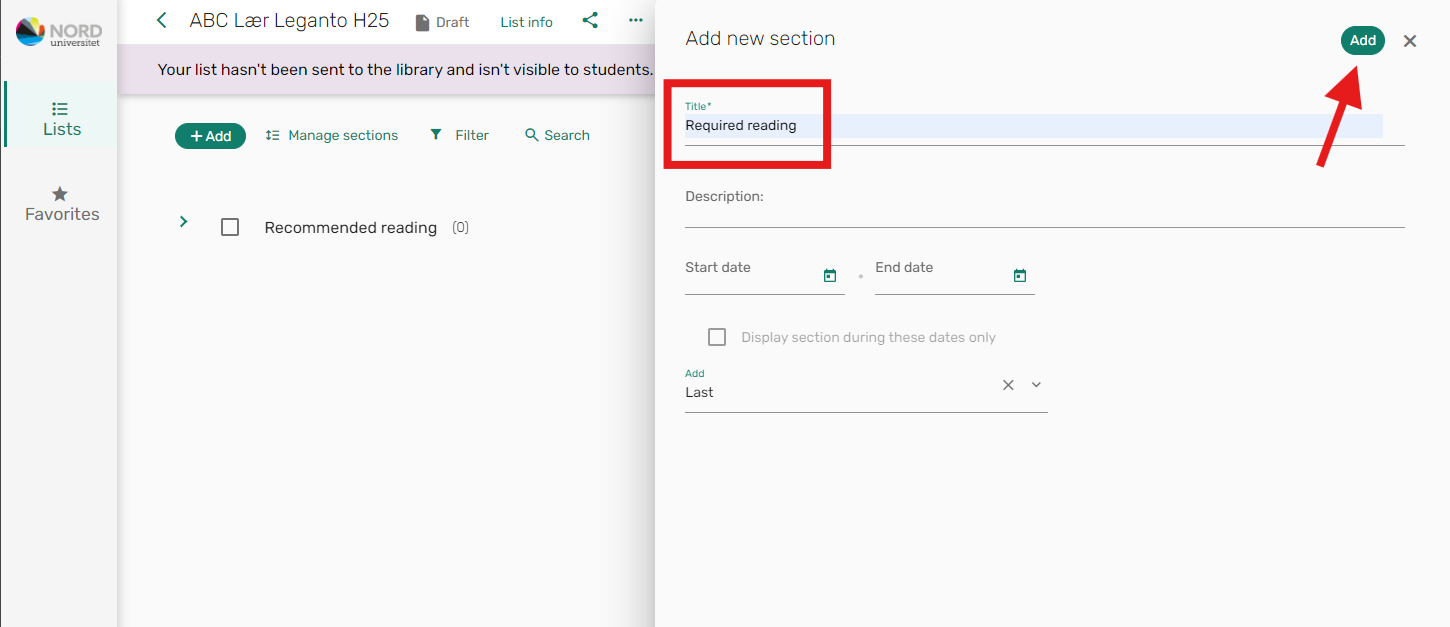
Tip! It is possible to add comments/information related to each section. You do this by entering the information in the "Description" field in the image above.
To change the order of sections:
Close all sections, and check the box for the section you want to move.
Use the arrow keys that appear at the top of the screen to move the section up or down.

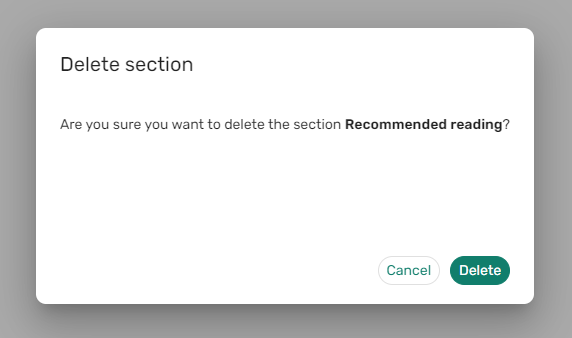
To delete a section:
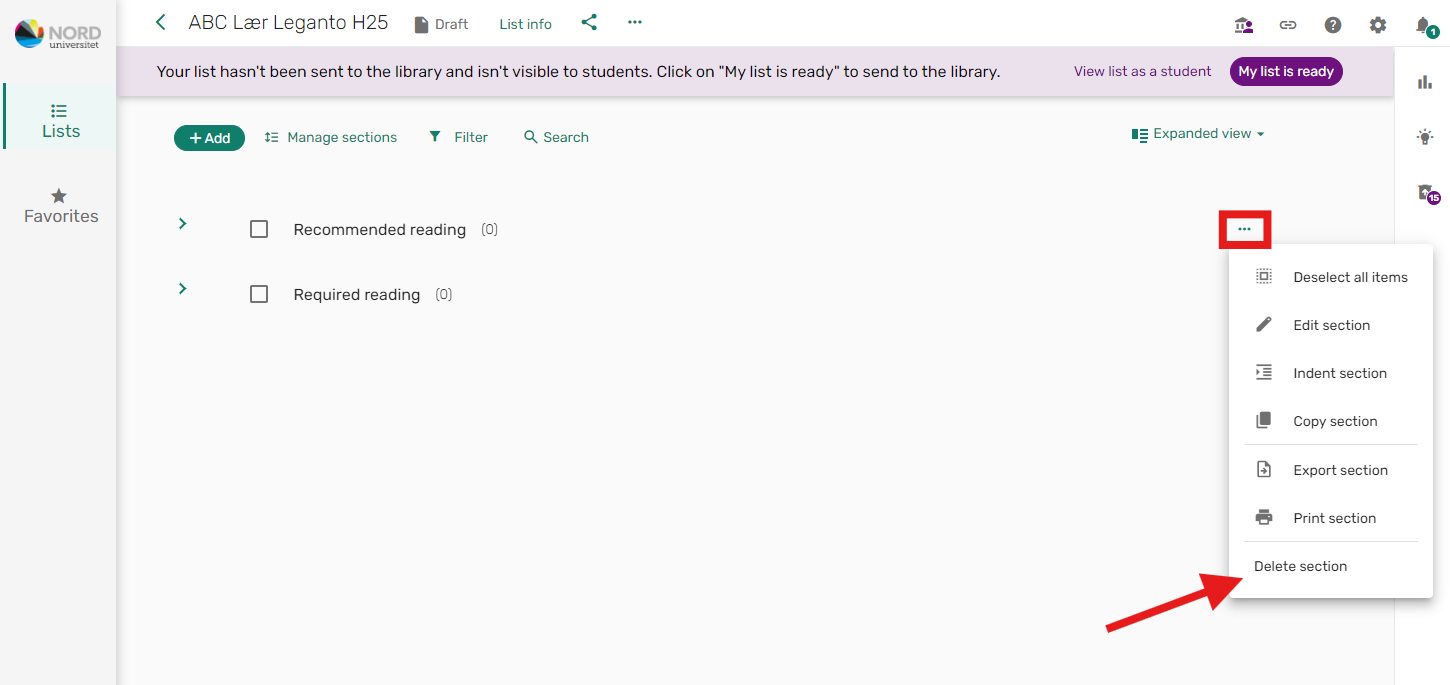
Close the section, and hover your mouse pointer over the title. Click the three dots that appear on the right, and select "Delete Section".
When asked if you are sure you want to delete the section, click "Delete".