

You create the reading list via the course's Canvas room. Open the Canvas room, and click the "Reading Lists" option in the sidebar.
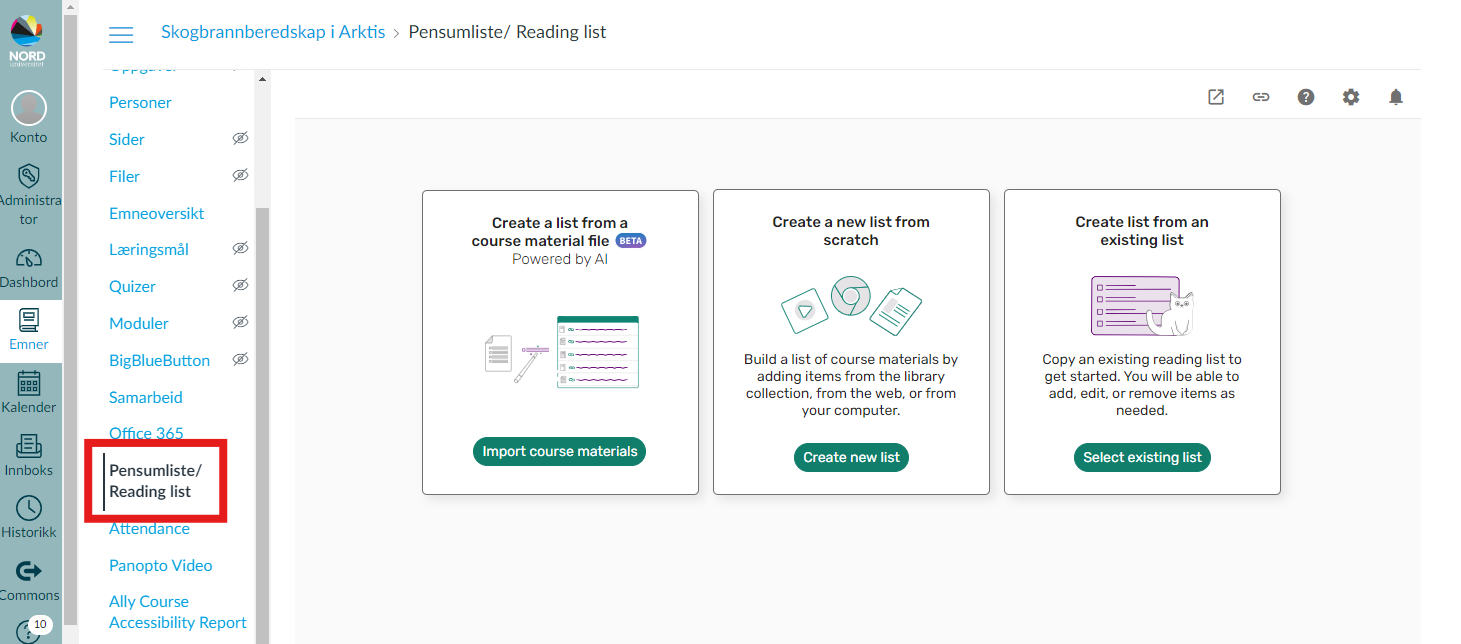
If there is already a reading list there, it has been copied over from last year. You can then skip this step in the guide and start editing the list.
If there is no list there, you must create it yourself or ask the library to create it for you.
If you create a new reading list yourself, you can choose between three options:
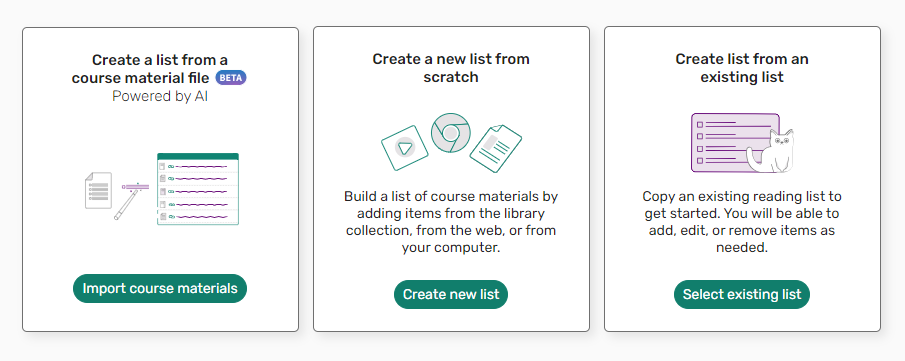
We've added a guidance for each option below:
Click on "Create new list"

Enter the name of the reading list. It should be "Course Code - Course Title (semester/year)". For example, "ORG1017 - Forest Fire Preparedness in the Arctic H25".
In the "Campus" field, enter all the campuses where the course will be held, separated by commas. Example: "Bodø, Levanger, Nesna, Mo i Rana".
In the "Enter course code, choose year and semester"-field, you'll link your reading list to the correct course. Enter the course code and select the correct course from the drop-down menu that appears
Example of completed fields:
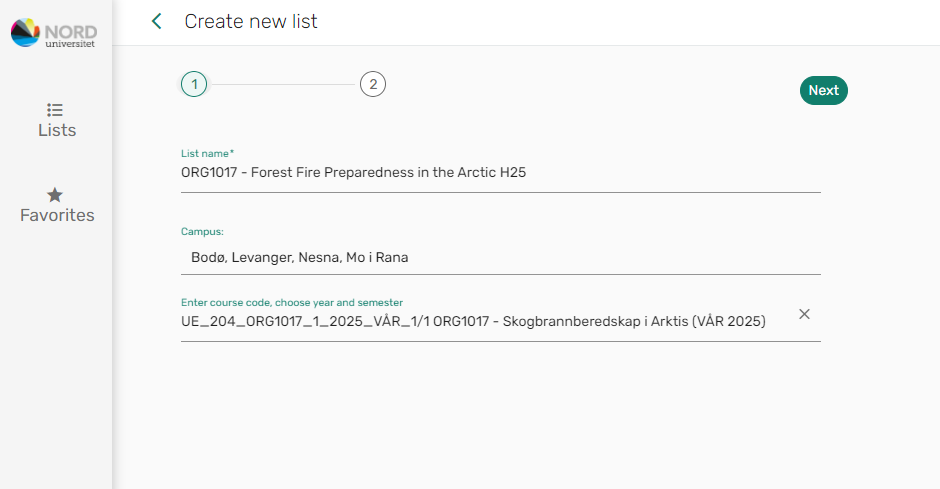
Click "next".
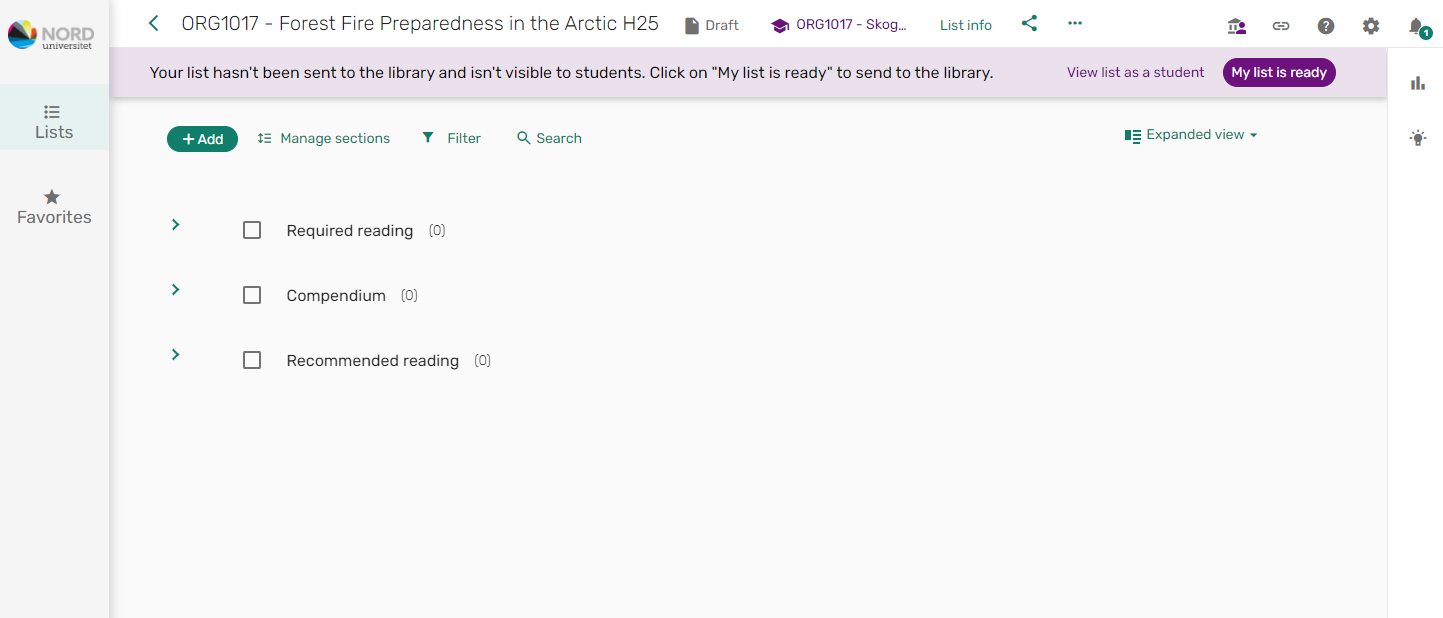
You will now choose which sections you want to include in your reading list (This can be changed later).
- Required reading
- Required reading, compendium
- Required reading, compendium, recommended reading
- No required reading in this course
Select the desired option from the drop-down menu, and click "Create reading List".
The list is now created, and you can proceed to the next step.
Click on «Select existing list»:
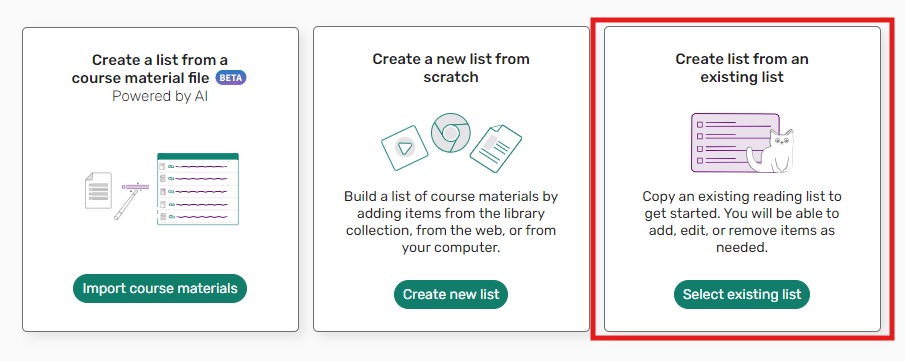
Select «List catalog», search for the title or course code of the reading list you want to copy from, and click 'Duplicate list':"
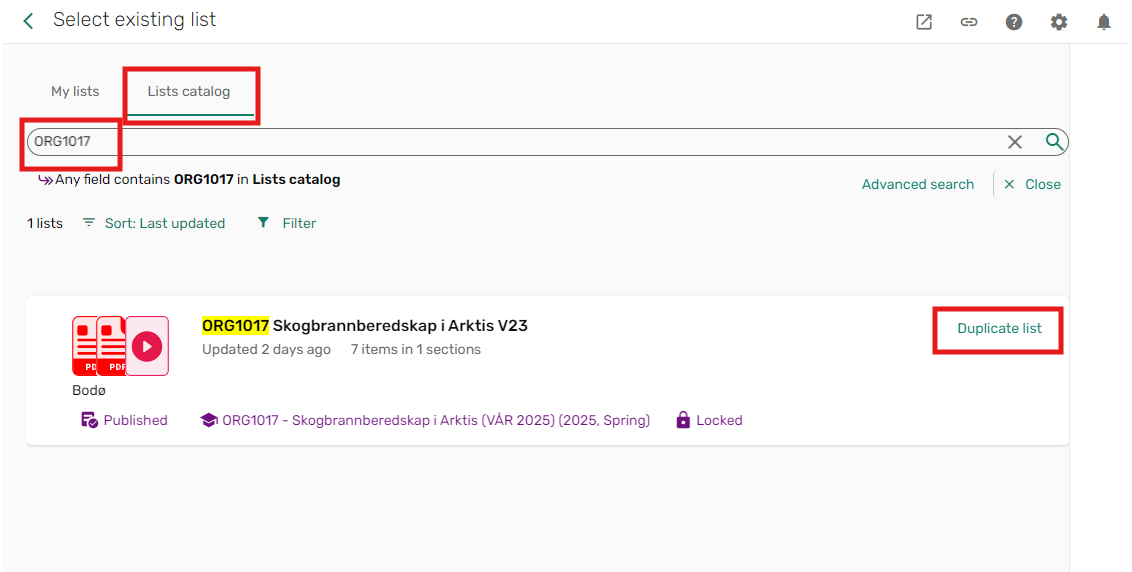
In the following window, enter the name of the reading list. It should be "Course Code - Course Title (semester/year)". For example, "ORG1017 - Forest Fire Preparedness in the Arctic H25".
In the "Campus" field, enter all the campuses where the course will be held, separated by commas. Example: "Bodø, Levanger, Nesna, Mo i Rana".
In the "Enter course code, choose year and semester"-field, you'll link your reading list to the correct course. Enter the course code and select the correct course from the drop-down menu that appears
Example of completed fields:
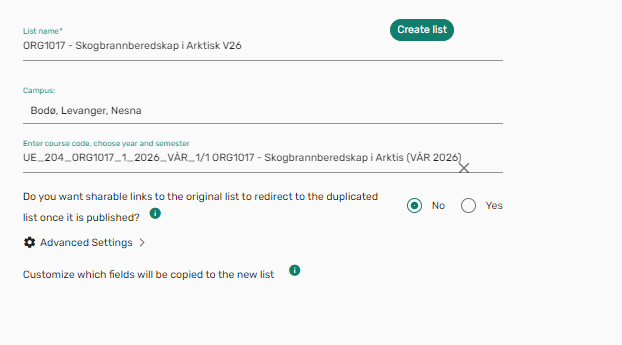
Click on «Create list»
The copied reading list has now been created, and you can start working on it.
If you have the references for your reading list saved in a Word or PDF file, you can ask Leganto to create a reading list based on the file.
Note! You still need to review your list before sending it to the library. This feature is generated by artificial intelligence, so the content of the file may be interpreted incorrectly.
Click on «Import resources»
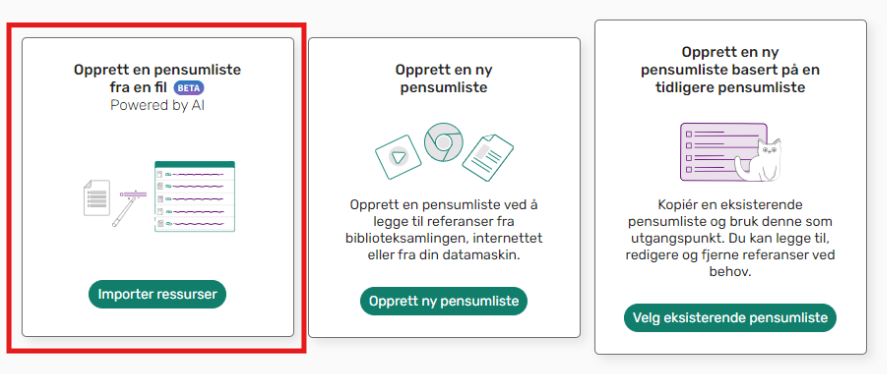
Drag the file you want to use into the grey field.
If you prefer, you can also paste your references as plain text into the window below. This may be a solution if the AI is unable to interpret your file.
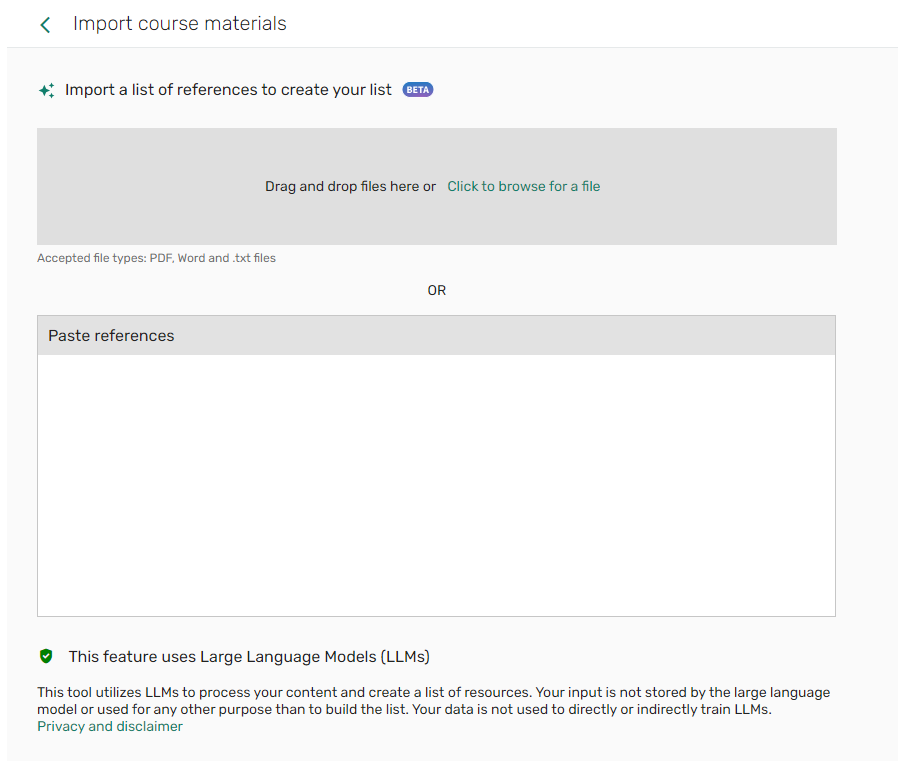
Once you've dropped off your file, the AI will begin creating the list for you. This may take some time.
When the file is loaded, enter the name of your reading list. It should be "Course Code - Course Title (semester/year)". For example, "ORG1017 - Forest Fire Preparedness in the Arctic H25".
In the "Campus" field, enter all the campuses where the course will be held, separated by commas. Example: "Bodø, Levanger, Nesna, Mo i Rana".
In the "Enter course code, choose year and semester"-field, you'll link your reading list to the correct course. Enter the course code and select the correct course from the drop-down menu that appears
Example of completed fields:
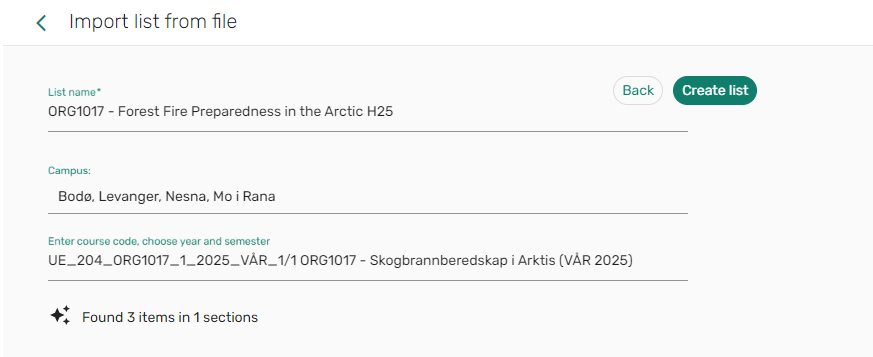
Click on «Create list»
The reading list has now been created, and you can start working on it.